
A Better Way to Test Database Schema Changes during Local Development and Pull Requests
Testing database schema changes in a shared environment can be risky, but isolation makes it manageable. This tutorial demonstrates how to use Signadot Sandboxes and Resource Plugins to create isolated MariaDB instances for testing schema changes without disrupting shared databases. Using the HotRod application as an example, you'll learn to add a new column, test updates in an isolated environment, and clean up resources post-testing. By following these steps, teams can streamline their workflows, improve collaboration, and confidently implement changes with minimal impact.
Introduction
Testing database schema changes in a shared environment can be tough. When multiple teams rely on the same database, modifying schemas might disrupt others. This challenge becomes critical when adding new columns or altering existing tables.
However, you can overcome this problem. Using Signadot Sandboxes and Resource Plugins, you can create isolated databases for testing. Signadot allows you to spin up temporary databases specifically for your schema changes. This way, you can test modifications without affecting the shared database or impacting other teams.
In this tutorial, we’ll show you how to set up database isolation using Signadot. We’ll use the HotRod demo application for this tutorial, particularly the location service that interacts with a MySQL database. You can clone the repo to follow along.
You’ll learn how to add a new description column to the locations table and test it within an isolated database instance.
By the end, you’ll be able to:
- Create a resource plugin to provision a temporary MariaDB database.
- Register and manage the plugin using Signadot.
- Implement and test schema changes in isolation.
- Clean up resources after testing is complete.
Let’s get started and see how Signadot can make testing database schema changes easier in a collaborative environment.
Prerequisites
Before we start, make sure:
- Your Kubernetes cluster is connected to Signadot. You can set this up using the Signadot Quickstart Guide.
- The HotRod application is running in your Kubernetes cluster. Deployment instructions are available in the HotRod repository.
Roles and Responsibilities
In this process, two main roles are involved:
- Platform Team Member: The platform team member sets up the resource plugin that provisions temporary MariaDB instances. They ensure the infrastructure is ready for developers to use isolated databases during testing.
- Application Developer: The application developer introduces the schema change and updates the code accordingly. They create a sandbox using the resource plugin and test the new feature in isolation.
Understanding these roles helps streamline the workflow. It clarifies who is responsible for each part of the process.
Platform Team Member: Setting Up the MariaDB Resource Plugin
To enable developers to test schema changes safely, set up a resource plugin that provisions temporary MariaDB instances. This plugin allows sandboxes to create and use their own databases without affecting the shared environment.
Creating the Resource Plugin
First, create a resource plugin that provisions a temporary MariaDB server for use within a sandbox. The plugin consists of several components:
1. Plugin Configuration: Defines the plugin’s behavior, inputs, outputs, and the scripts to run during provisioning and deprovisioning.
In this configuration:
name: The name of the plugin (mariadb).spec: Contains the plugin specifications, including a description, runner configuration, and the create and delete steps.runner: Specifies the Docker image and Kubernetes namespace for running the plugin scripts.create: Defines the steps to provision the resource. It takes inputs from the sandbox (e.g.,dbname) and provides outputs (e.g.,host,port,root-password).delete: Specifies the script to run when deleting the resource.
2. Provisioning Script: Contains the logic to deploy a MariaDB instance using Helm.
This script performs the following actions:
- Adds the Bitnami Helm repository.
- Installs a MariaDB instance using Helm, customized for the sandbox.
- Retrieves the root password from the generated Kubernetes secret.
- Writes the database host, port, and password to temporary files for Signadot to read as outputs.
3. Deprovisioning Script: Handles the cleanup of the MariaDB instance when the sandbox is deleted.
This script uninstalls the MariaDB Helm release associated with the sandbox, effectively cleaning up the temporary database.
Configuring Kubernetes Permissions
For the plugin to work correctly, it needs appropriate permissions in the Kubernetes cluster. You’ll create a ServiceAccount, Role, and RoleBinding to grant the necessary access.
Apply these configurations to your cluster:
This sets up the necessary permissions for the plugin to create and manage MariaDB instances within the signadot namespace.
Registering the Plugin with Signadot
Now that the plugin is configured, you need to register it with Signadot so that it can be used in sandboxes.
Use the Signadot CLI to apply the plugin configuration:
This command registers the mariadb plugin with the Signadot control plane. The plugin is now available for use in sandbox specifications.
Application Developer: Testing Schema Changes with an Isolated Database
Now that the platform team has set up the MariaDB resource plugin, you can safely test your schema changes. You’ll add a new description field to the locations table, update the application code, create a sandbox using the plugin, and verify your changes—all without affecting the shared database.
Signadot spins up isolated sandboxes on the Kubernetes cluster you already run, so every change is validated against real services before it merges. The free tier is open to every developer.
Introducing the Schema Change
Let’s assume you need to add a description column to the locations table in the HotRod application. This field will store extra information about each location. Testing this change on the shared database could disrupt other teams. Therefore, you’ll use an isolated database for testing.
You can clone the Hotrod repository to follow along.
Making Code Changes
First, update the Location struct in the interface.go file of the location service to include the new Description field:
Next, modify the database.go file to handle the description field throughout the database interactions.
Updating the Table Schema
In database.go, update the tableSchema constant to add the description column:
Updating Seed Data
Update the seed variable to include descriptions for each location:
Modifying Insert and Update Queries
Update the Create and Update methods to include the description field.
Adjusting Select Queries
Modify the List and Get methods to retrieve the description field.
Creating the Sandbox Specification
Now, create a sandbox specification that uses the MariaDB plugin to provision an isolated database for testing your schema changes. Use the following sandbox.yaml file:
Applying the Sandbox
Use the Signadot CLI to create the sandbox:
Replace <your-cluster-name> with the name of your Kubernetes cluster. Ensure that you have built and pushed your custom location service Docker image to a container registry accessible by your cluster.
Testing the End-to-End Flow
With your sandbox created, it’s time to test your schema changes in the HotRod application. There are two primary ways to test the new description field:
- Using
curlwithsignadot local connectto interact directly with thelocationservice. - Previewing through the frontend using the Signadot Chrome Extension.
Let’s explore both options below:
Option 1: Testing via curl and signadot local connect
Since the location service is not exposed externally, you’ll need to use signadot local connect to route traffic to it from your local machine. Additionally, you must include the sandbox routing key in your request headers.
Step 1: Start Signadot Local Connect
Start the local connection to your cluster:
Step 2: Obtain the Sandbox Routing Key
Retrieve the sandbox routing key, which is used to route requests to your sandboxed services. You can find this key on your Signadot UI.
Step 3: Send a Request to the location Service
Use curl to send a POST request to the location service within the sandbox. You’ll need to:
- Use the service’s cluster-local DNS name.
- Include the routing key in the request headers.
Replace
Step 4: Retrieve All Locations
Send a GET request to list all locations:
Your output should be similar:
Option 2: Previewing Through the Frontend Using the Chrome Extension
An alternative and user-friendly way to test your changes is by interacting with the application through its frontend using the Signadot Chrome Extension. This method leverages the existing UI and automatically handles the necessary routing headers.
Step 1: Install the Signadot Chrome Extension
Download from the Chrome Web Store: Signadot Chrome Extension. Install the extension in your Chrome browser.
Step 2: Log In to Signadot
Ensure you’re logged into your Signadot account at app.signadot.com. The extension requires authentication to access your organization’s sandboxes.
Step 3: Enable the Extension
Click on the Signadot extension icon in Chrome. Select your sandbox from the list. Toggle the extension to the “ON” position.
Step 4: Access the Frontend Application
Navigate to the frontend URL: https://frontend.<namespace>.svc:8080. The Chrome extension injects the necessary routing headers, ensuring your requests are directed to the sandboxed services.
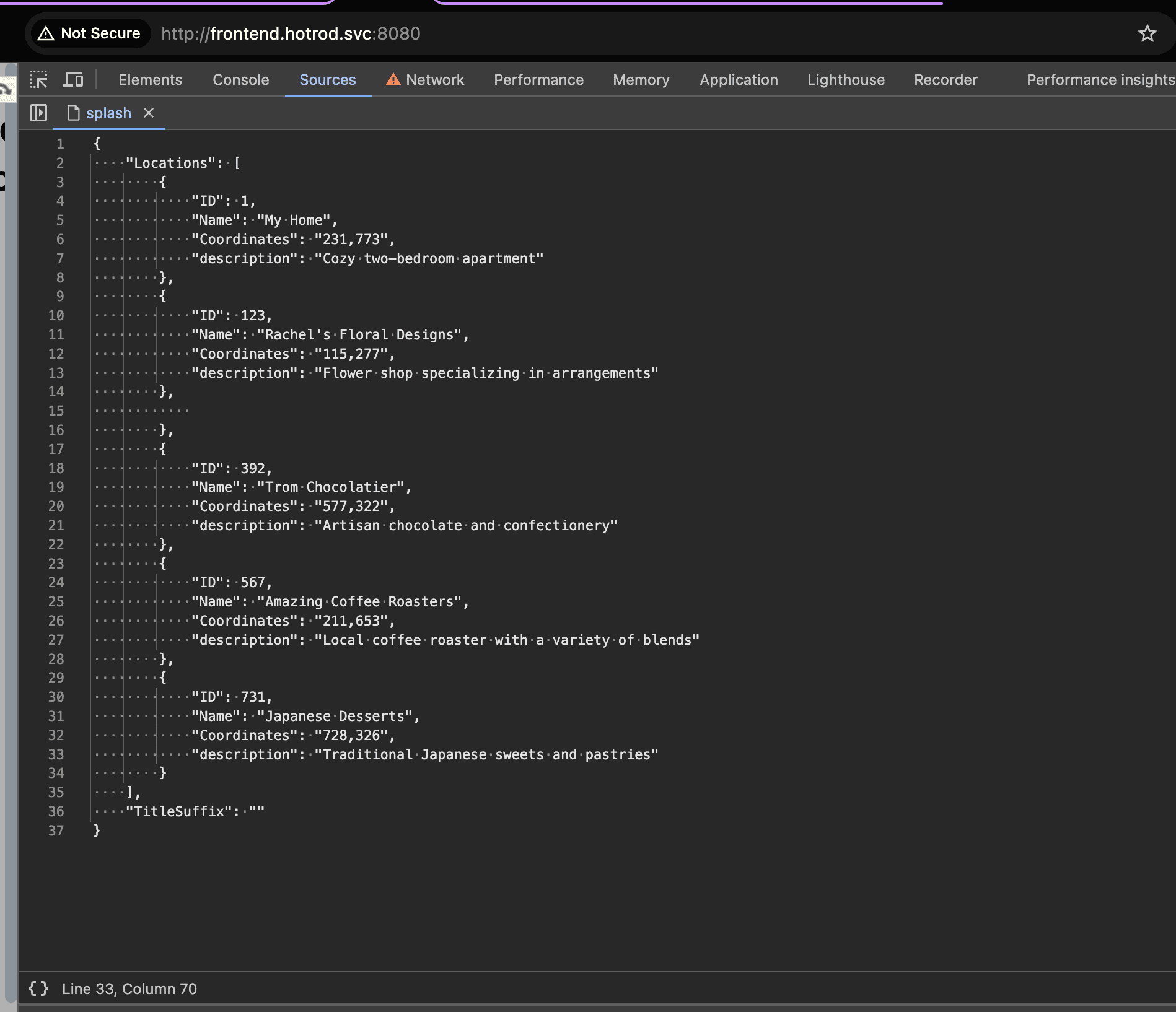
Verifying Database Schema Changes
Regardless of the testing method used, you may want to confirm that the database schema has been updated correctly. You can connect to the temporary MariaDB instance provisioned by the plugin.
You can connect using the MySQL client. Open a new terminal window and connect using the mysql client:
- Replace
<db-host>with the value fromprovision.host. - Replace
<db-port>with the value fromprovision.port. - Enter the
root-passwordwhen prompted.
Once connected, select the hotrod database and describe the locations table:
You should see that the locations table includes the new description column:
From the above, you can see that:
- The
descriptioncolumn has been successfully added to thelocationstable schema. - The column allows
NULLvalues (YESin theNullcolumn), which aligns with your schema definition. - The table now supports storing additional information for each location through the
descriptionfield.
Deleting the Sandbox
After testing, clean up the resources by deleting the sandbox:
This command removes the sandbox and triggers the deprovision.sh script to delete the temporary database.
Conclusion
Testing database schema changes in a shared environment can be challenging and risky. By using Signadot Sandboxes and Resource Plugins, you can create isolated databases for testing. This allows you to make schema changes without impacting the shared database or affecting other teams.
In this tutorial, you set up a MariaDB resource plugin to provision a temporary database. You updated the HotRod application’s location service by adding a new description field and tested these changes in an isolated sandbox. This approach enables you to safely implement and test schema changes, improving your development workflow.